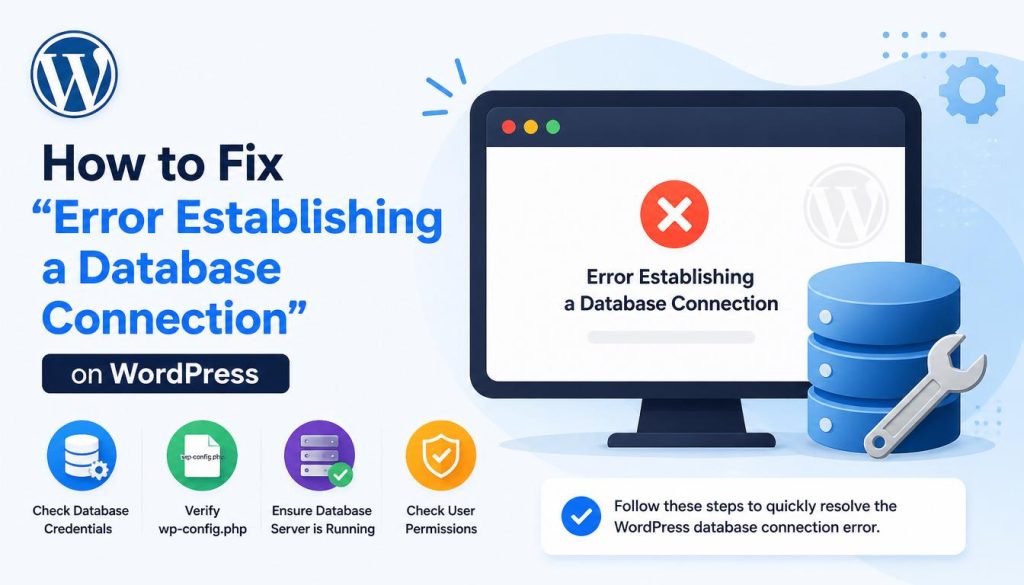
Few things strike fear into the heart of a WordPress site owner quite like the dreaded “Error Establishing a Database Connection” screen. Instead of your beautiful homepage, you (and your visitors) are greeted with a blank white page and a blunt error message.
Don’t panic. This is one of the most common WordPress errors, and it is entirely fixable. In this guide, we will walk you through exactly what causes this error and how to fix it step-by-step.
What Causes this Error?
In simple terms, WordPress uses a database (MySQL) to store all of your website’s content—posts, pages, user data, and plugin settings. Every time someone visits your site, WordPress connects to that database to load the page.
If it can’t talk to the database, your site crashes. This usually happens due to:
- Incorrect Database Credentials: Your site’s configuration file has the wrong login info.
- Corrupted Database: A plugin, theme, or bad query messed up the database tables.
- Responsive Server Issues: Your hosting server is down or overwhelmed.
Step 1: Check if the Error Happens on the WP-Admin Dashboard
The first thing you need to do is go to your WordPress admin dashboard (e.g., [yourwebsite.com/wp-admin](https://yourwebsite.com/wp-admin)).
- If you see the same error, move to Step 2.
- If you see a different error (like “One or more database tables are unavailable. The database may need to be repaired”), you need to repair your database.
How to Repair Your WordPress Database:
- Access your website files using an FTP client (like FileZilla) or the File Manager in your hosting cPanel.
- Locate the
wp-config.phpfile in your root folder. - Open the file and add the following line of code just before the ‘That’s all, stop editing! Happy publishing’ line:
PHP
define('WP_ALLOW_REPAIR', true);
- Save the file and visit:
[http://www.yourwebsite.com/wp-admin/maint/repair.php](http://www.yourwebsite.com/wp-admin/maint/repair.php) - Click the Repair Database button. Once it’s done, delete that line of code from your
wp-config.phpfile for security reasons.
Step 2: Check Your Database Connection Credentials
The most frequent culprit is an issue with your database credentials. This often happens after moving to a new host or changing passwords.
Open your wp-config.php file again and look for these four lines:
PHP
// ** Database settings - You can get this info from your web host ** //
define( 'DB_NAME', 'database_name_here' );
define( 'DB_USER', 'username_here' );
define( 'DB_PASSWORD', 'password_here' );
define( 'DB_HOST', 'localhost' );
You need to verify that every single one of these values matches your current hosting settings exactly.
Note: If you are on a host like Bluehost, SiteGround, or Hostinger, your
DB_HOSTmight not belocalhost. It could be an IP address or a specific server URL. Check your hosting dashboard to confirm.
If anything is incorrect, update it, save the file, and refresh your website.
Step 3: Check Your Web Hosting Server
If your credentials are correct but the error persists, the problem might not be your fault at all. Your database server might be overwhelmed or temporarily down.
This happens frequently on cheap shared hosting if your site gets a sudden spike in traffic, or if another site on the same server is draining all the resources.
- Test it: Try to connect to your database management tool (like phpMyAdmin) via your hosting cPanel. If you can log in there, your server is fine. If you get a connection error there too, your hosting server is down.
- Action: Contact your hosting provider’s support immediately and tell them your MySQL server is unresponsive.
Summary Checklist
Before you pull your hair out, remember the golden order of operations:
- Check wp-admin to see if a database repair is needed.
- Double-check wp-config.php for typos in the DB Name, User, Password, and Host.
- Contact your host to ensure the database server isn’t overloaded or down.
Conclusion
The “Error Establishing a Database Connection” can be incredibly frustrating, but in 90% of cases, it comes down to a quick fix in your wp-config.php file or a temporary server hiccup. By systematically checking your credentials, running the built-in WordPress repair tool, and reaching out to your host if the server is down, you can get your website back online safely without losing any data.
To prevent this from happening in the future, always keep your plugins updated and consider upgrading to a managed WordPress host if your traffic is outgrowing your current shared hosting plan.